
What Are System PDF Form Templates?
System PDF form templates are pre-built, ready-to-use PDF form templates provided by Taino Solutions — such as standard ACORD forms and other common insurance documents. Instead of designing a form from scratch, you can clone one of these system templates directly into your agency's account, then customize it as needed before activating it for use.
Step 1: Navigate to the PDF Forms Section
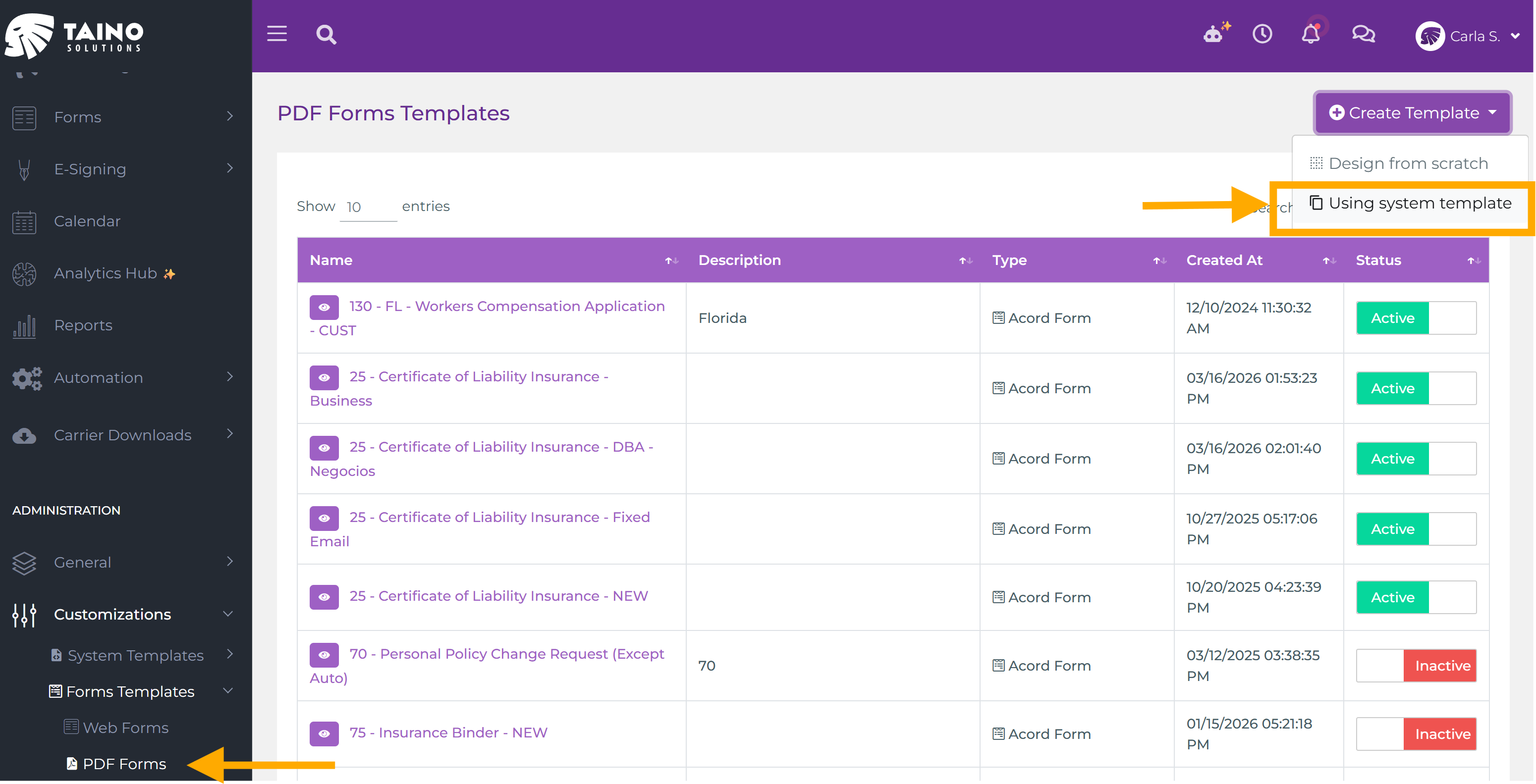
In the left navigation menu, go to Administration → Customizations → Forms Templates → PDF Forms. This page lists all PDF form templates currently in your agency's account.
Step 2: Open the Create Template Menu
In the top-right corner, click the Create Template button. A dropdown menu will appear with two options:
- Design from scratch — upload your own PDF file and build the template in the PDF Designer. See Creating Custom Templates for PDF Forms and Certificates for a full walkthrough.
- Using system template — clone a pre-built system template into your agency's account.
Select Using system template.
Step 3: Choose a System PDF Template
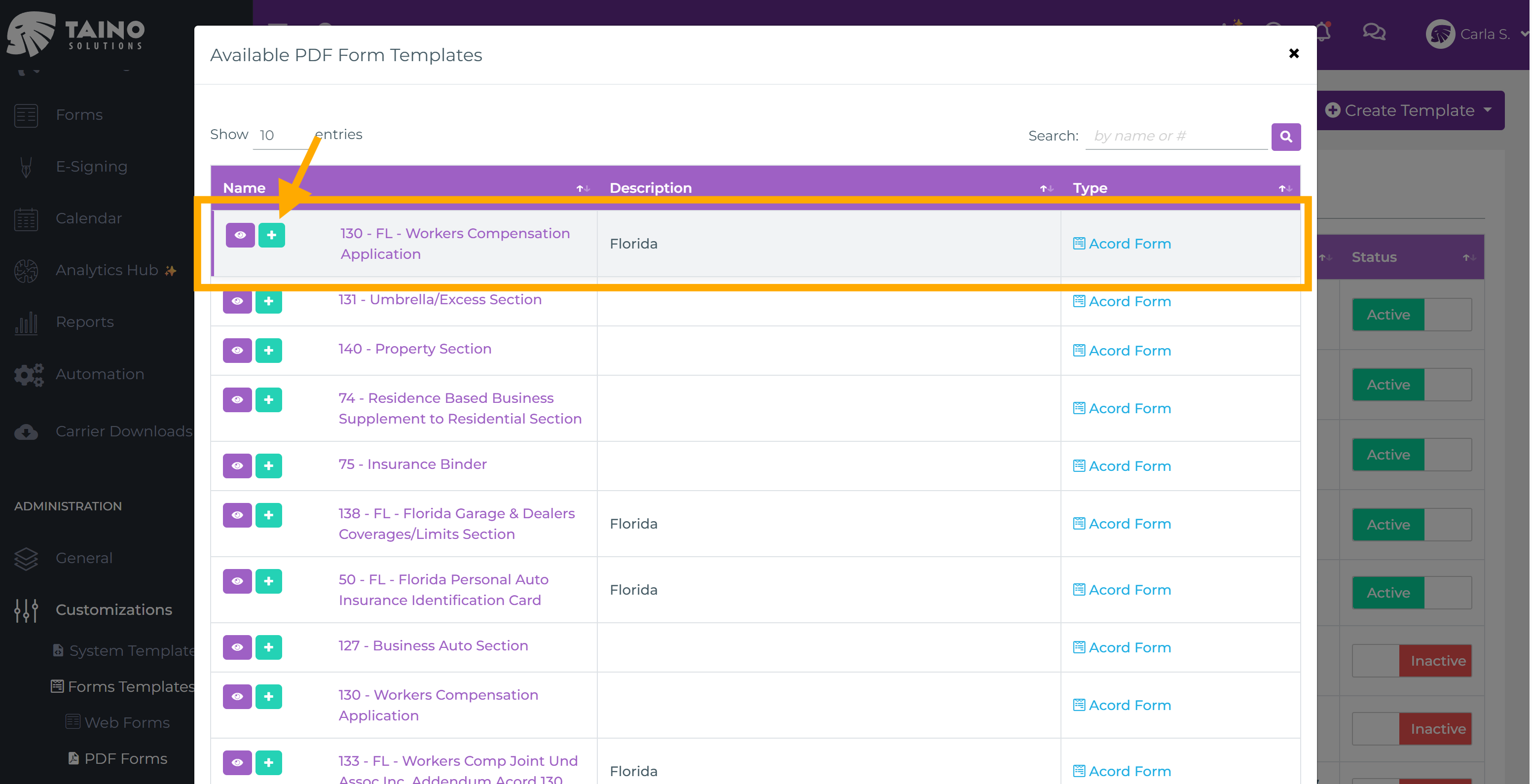
A modal will appear titled Available PDF Form Templates, listing all pre-built system PDF templates — standard ACORD forms such as the ACORD 25 Certificate of Liability Insurance, ACORD 130 Workers Compensation Application, ACORD 75 Insurance Binder, and others. You can preview a template using the eye icon, or click the green + button to clone it into your account.
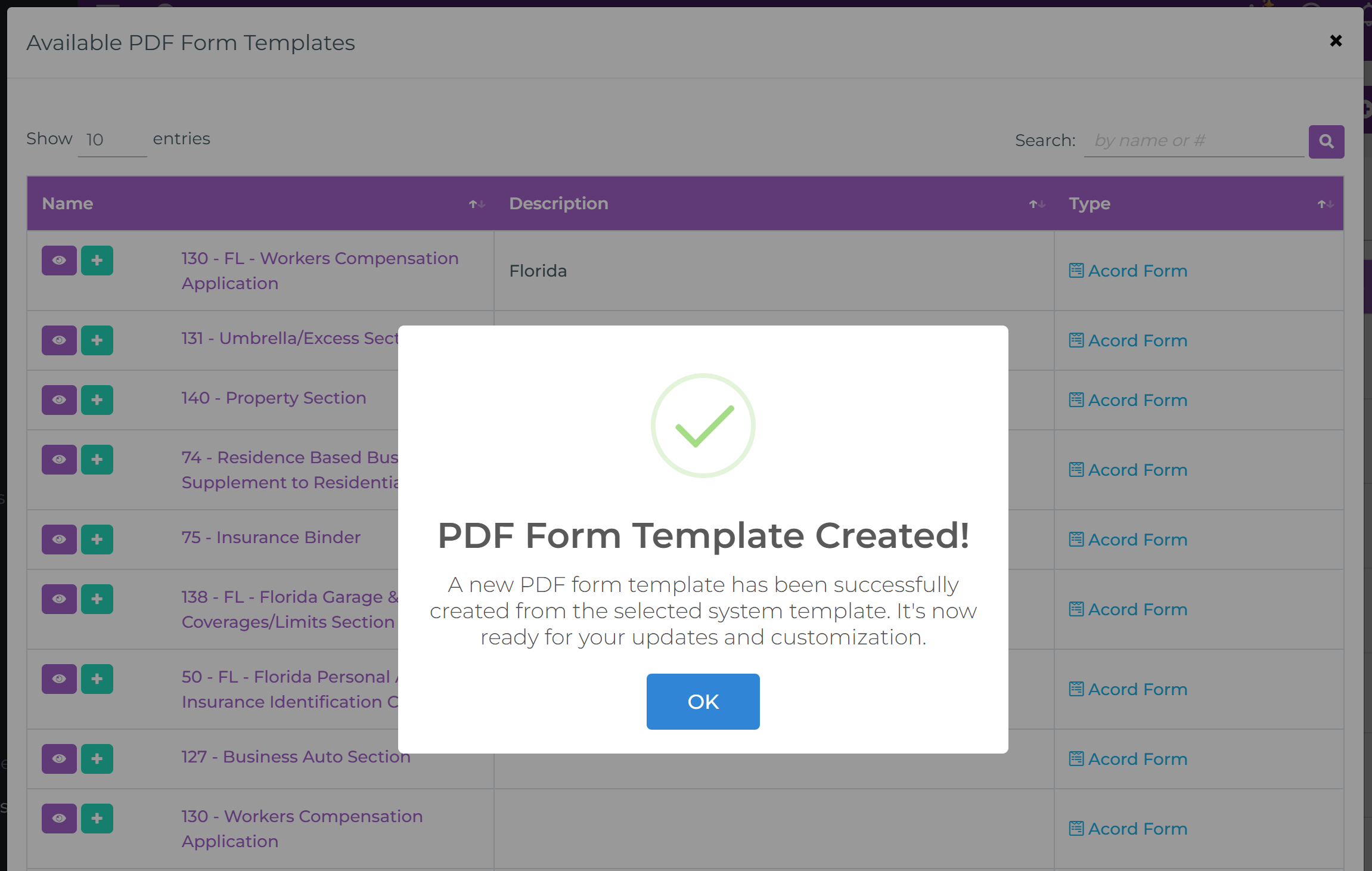
After clicking the + button, a confirmation dialog will appear: "PDF Form Template Created!" — confirming the template has been cloned. Click OK and you will be taken directly to the PDF Designer for that template, where you can begin reviewing and customizing it right away.
Step 4: Review and Customize the Template
You are now inside the PDF Designer for the cloned template. Unlike the web form flow where you navigate back to find your new template, here you land directly on the edit page. From here you can:
- Rename the template to something meaningful for your team
- Adjust or move existing fields as needed
- Add new fields for information specific to your agency
- Review and update data mappings to match your workflows
- Toggle the template status to Active when ready
For a complete guide on working with data mappings, see Mapping Data Fields in Form Templates.
Step 5: Activate the Template
When you're done reviewing and customizing, activate the template by toggling its status to Active. You can do this directly from the PDF Designer, or from the PDF Forms list. Once active, the template is available for generating PDF forms for customers and policies across your agency.
Conclusion
System PDF form templates give your agency a fast path to deploying standard insurance documents without building them from the ground up. Clone a template, tailor it to your agency's needs, and activate it — your team can start generating professionally formatted, auto-filled PDF forms right away.