
Finding Customers Quickly
The platform provides multiple powerful ways to search for customers, whether you're looking for a specific customer by name, phone number, address, email, or using special search directives like customer numbers or external IDs. Understanding these search capabilities will help you find customer records quickly and efficiently.
Two Primary Search Locations
You can search for customers from two main areas in the platform:
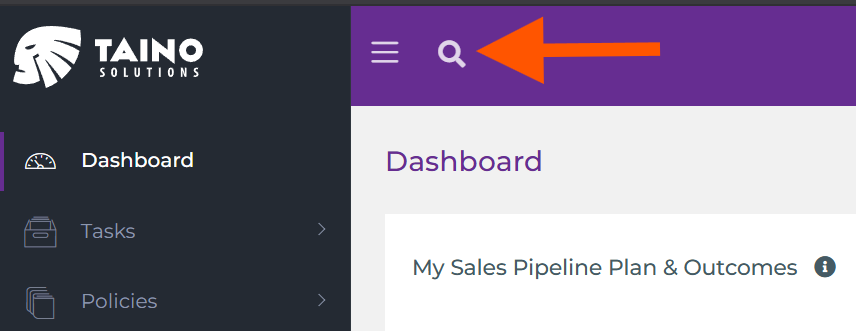
- Top Header Search Box: Available from any page in the platform, the search box in the top header (next to the magnifying glass icon) allows you to quickly search for customers without navigating away from your current page
- Customer List Pages: Navigate to Customers in the left navigation menu, then choose either All Customers or My Customers. These pages provide both a search box and advanced filtering capabilities
Search by Name
The most common way to search for customers is by name. Simply type the customer's first name, last name, or both:
- First Name Only: Type "John" to find all customers with "John" in their first or last name
- Last Name Only: Type "Smith" to find all customers with "Smith" in their first or last name
- Full Name: Type "John Smith" to find customers where the first name starts with "John" and the last name starts with "Smith"
The search is case-insensitive and matches names that start with your search term, making it easy to find customers even if you only remember part of their name.
Search by Phone Number
You can search for customers by their phone number. Simply type the phone number in any format:
- With or without dashes: "713-555-8080" or "7135558080"
- With or without parentheses: "(713) 555-8080"
- With or without spaces: "713 555 8080"
The system automatically detects that you're searching by phone number and finds all customers with a matching phone number in their contact information.
Search by Email
To search for a customer by email address, simply type the complete email address (e.g., "[email protected]"). The search will match customers with that exact email address on file.
Search by Address
You can search for customers by their street address. The system looks for matches in the address fields and returns customers whose addresses contain your search term. For example, typing "500 Market St" will find customers with that address.
Special Search Directives
For more precise searches, you can use special search directives that target specific fields. These directives allow you to search by system identifiers like Customer Number and External ID.
Understanding Customer Number vs External ID
Before using these search directives, it's important to understand the difference between these two identifiers:
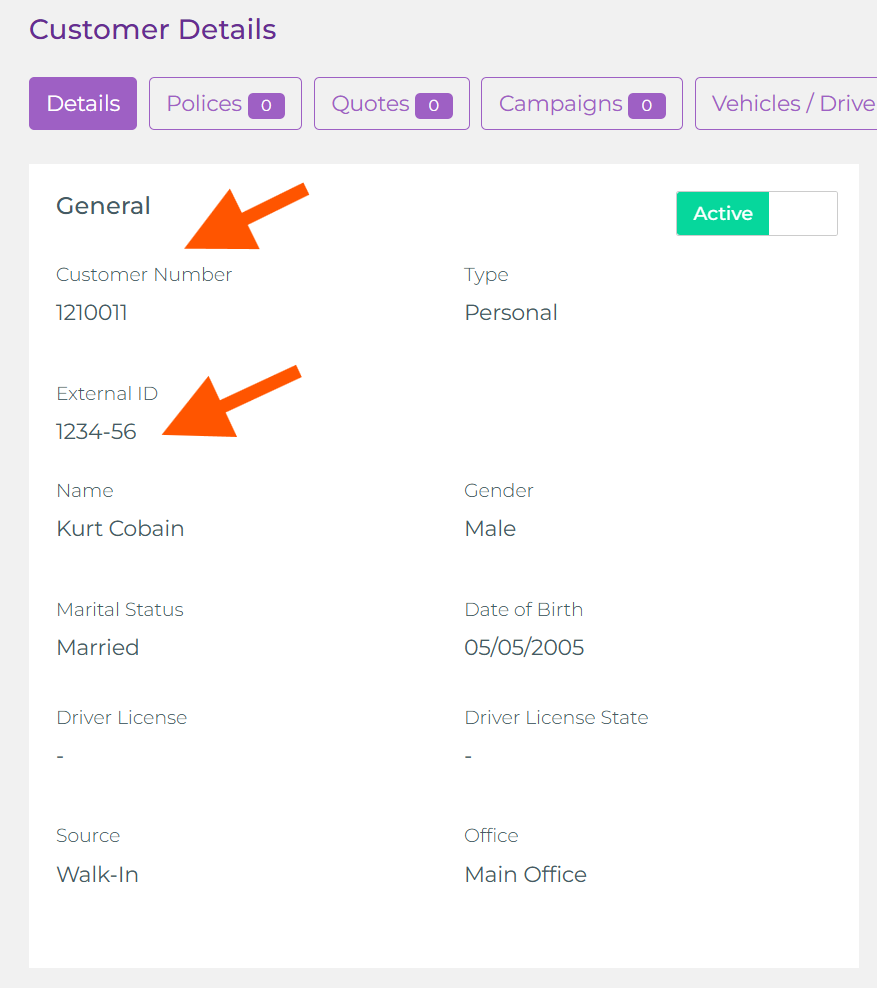
- Customer Number: An auto-generated unique identifier assigned by the platform when a customer record is created. This number is system-managed and cannot be changed. Example: 1210011
- External ID: An optional user-defined identifier that you can set when creating or editing a customer. This is useful for linking customers to external systems (like a previous AMS, accounting software, or corporate databases). Example: 1234-56
Search by Customer Number
To search by customer number, use any of these directive formats:
- customernumber:1234567 - Finds the customer with the exact customer number 1234567
- cno:1234567 - Short form for customer number
- cnum:1234567 - Alternative short form
- custno:1234567 - Another variation
- custnum:1234567 - Another variation
This is useful when you know the system-generated customer number and want to find them quickly without potential name conflicts. All variations work the same way.
Search by External ID
If your agency uses external IDs from another system (like a previous AMS or integration), you can search using:
- externalid:ABC123 - Finds the customer with the external ID "ABC123"
- extid:ABC123 - Short form for external ID
- ext:ABC123 - Shortest form
This directive performs a case-insensitive exact match, making it easy to locate customers imported from external systems or linked to third-party platforms. All three variations work the same way.
Advanced Filtering on Customer List Pages
When you navigate to Customers → All Customers or Customers → My Customers from the left navigation menu, you gain access to additional filtering capabilities beyond the basic search:
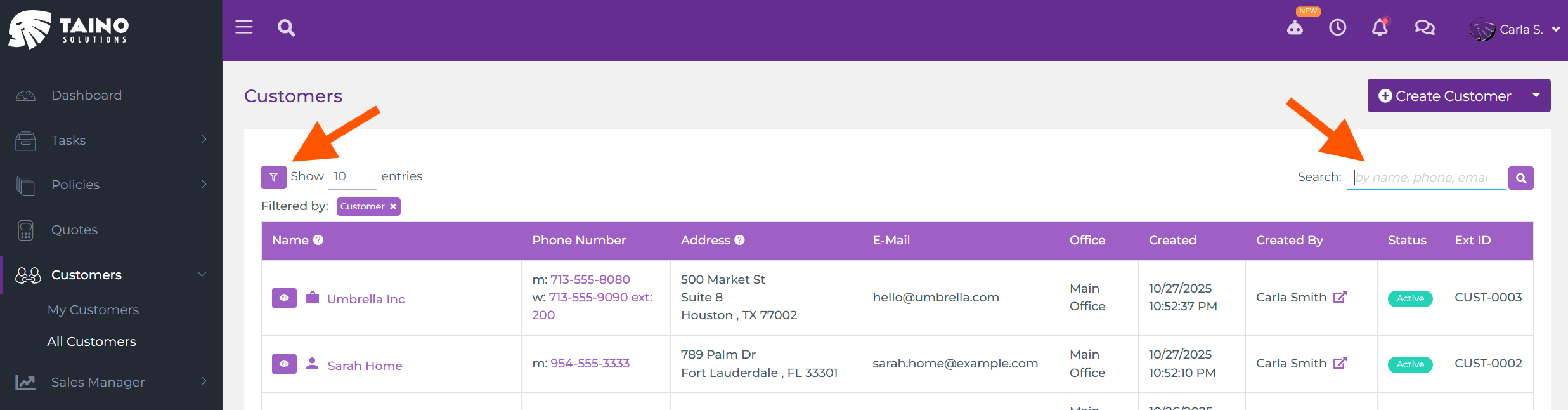
Table Search Box
At the top of the customer list table, you'll find a search box (top right) that works exactly like the header search, allowing you to search by name, phone, email, address, or using special directives.
Filter Options
To the left of the table, you'll see filter controls (indicated by the purple funnel icon) that allow you to narrow down the customer list by various criteria:
- Customer Type: Filter by individual customers, businesses, or other customer types
- Customer Status: Show only active or inactive customers
- Customer Source: Filter by how the customer was acquired (referral, web, marketing campaign, etc.)
- Assigned Agent: Show only customers assigned to a specific agent
- Office: Filter by office location if your agency has multiple offices
- Contact Type: Filter between prospects and customers
You can combine multiple filters to narrow your search. For example, filter by "Active Customers" + "Assigned to John Doe" + "Main Office" to see a very specific subset of your customer base.
Show Entries
The "Show 10 entries" dropdown (top left of the table) allows you to control how many customer records display per page. You can choose to display 10, 25, 50, or 100 records at a time, making it easier to browse through large customer lists.
Tips for Effective Searching
- Start Broad, Then Filter: If you're not sure of the exact spelling, start with a partial name and use filters to narrow down the results
- Use Special Directives for Precision: When you know a customer number or external ID, use those directives to get exact matches instantly
- Search from Anywhere: Remember that the top header search is always available, so you don't need to navigate to the Customers page to find someone
- Combine Search and Filters: On customer list pages, use both the search box and filters together for the most precise results
Conclusion
With multiple search methods, special directives, and advanced filtering options, finding customers in the platform is fast and flexible. Whether you're searching by name, contact information, or system identifiers, the platform provides the tools you need to locate customer records efficiently.