
Finding Policies Efficiently
The platform provides multiple access points and search methods to help you find policy information quickly. Whether you need to locate a specific policy by number, view all policies for a particular customer, or filter policies by status or type, understanding these various approaches will streamline your daily workflow.
Multiple Ways to Access Policies
There are several entry points to view and search for policies in the platform:
1. Through the Left Navigation Menu
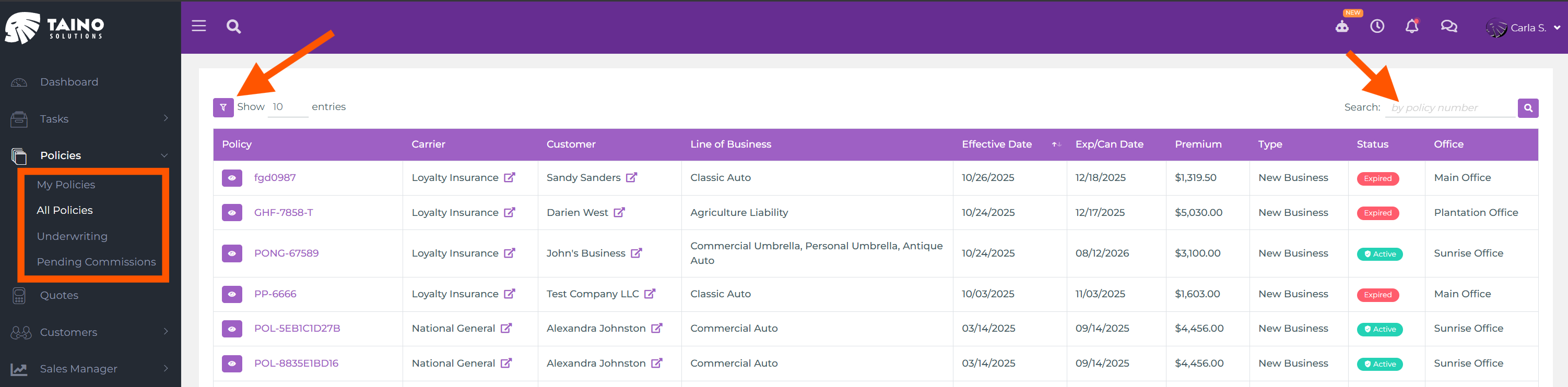
The primary method for accessing policies is through the left navigation menu under Policies. Click on Policies to reveal several options:
- All Policies: View every policy in your agency, regardless of who manages it or what status it has
- My Policies: View only the policies assigned to you as the managing agent
- Pending Commissions: See policies that have pending commission entries requiring your attention
- Underwriting: Access policies currently in underwriting status, awaiting carrier approval or additional information
2. From Customer Details Page
When you're viewing a customer's details page, you can quickly access all policies associated with that customer:
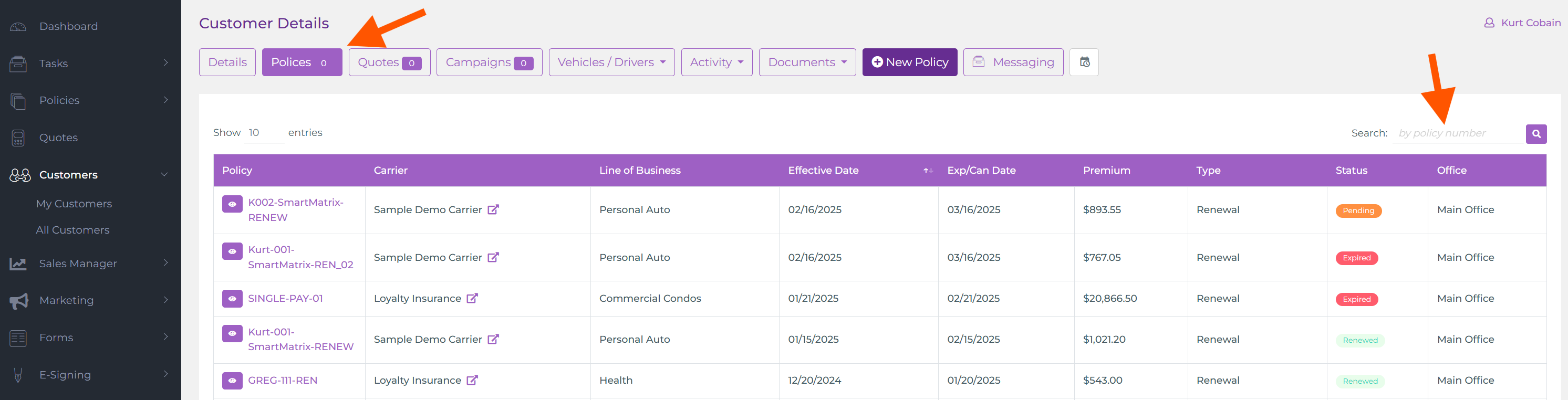
- Navigate to the customer's details page (by searching for the customer and clicking their name)
- On the top menu bar within the customer details page, click the Policies button
- This will show you a filtered view displaying only the policies for that specific customer
This is particularly useful when working with a customer and you need to review their coverage, policy renewals, or specific policy details without leaving the customer context.
Searching for Policies by Number
Once you're on any of the policy list pages (All Policies, My Policies, Pending Commissions, or Underwriting), you'll find a search box at the top right of the policy table. This search box allows you to:
- Search by Policy Number: Type the complete or partial policy number to find a specific policy
- Search by Customer Name: Type the customer name to filter the list to policies belonging to that customer
- Search by Carrier Name: Type the carrier/insurance company name to see all policies with that carrier
The search is performed in real-time as you type, dynamically filtering the policy table to match your search criteria.
Advanced Filtering on Policy Pages
Beyond the basic search box, each policy list page provides advanced filtering capabilities to help you narrow down policies by specific attributes:
Filter Options
Look for the filter controls (typically indicated by a purple funnel icon) on the left side of the policy table. Depending on which policy page you're viewing, you can filter by:
- Policy Status: Filter by Active, Expired, Cancelled, Pending, or other policy statuses
- Policy Type: Show only specific types of policies such as Auto, Home, Life, Commercial, etc.
- Carrier: Filter to show policies from a specific insurance carrier
- Effective Date Range: Filter policies by their effective date or renewal date within a specific date range
- Assigned Agent: Show only policies managed by a specific agent in your agency
- Office Location: If your agency has multiple offices, filter by office location
- Payment Status: Filter by policies with outstanding payments, paid in full, or on payment plans
You can combine multiple filters simultaneously to create highly specific views. For example, filter by "Active Policies" + "Auto Insurance" + "Assigned to Jane Smith" to see a precise subset of your agency's policies.
Show Entries Control
Similar to the customer list pages, the "Show 10 entries" dropdown (located at the top left of the policy table) allows you to control how many policy records are displayed per page. Choose to display 10, 25, 50, or 100 records at a time, making it easier to navigate through large policy portfolios.
Sorting Policy Results
On any policy list page, you can sort the results by clicking on the column headers in the policy table:
- Policy Number: Sort alphabetically or numerically by policy number
- Customer Name: Sort policies alphabetically by the customer's name
- Effective Date: Sort by policy effective date (newest first or oldest first)
- Expiration Date: Sort by policy expiration/renewal date to identify policies coming up for renewal
- Premium Amount: Sort policies by premium amount (highest to lowest or vice versa)
Click a column header once to sort ascending, and click again to sort descending. This is particularly useful when you need to identify policies expiring soon or the highest premium policies in your book of business.
Tips for Effective Policy Searches
- Use the Right Entry Point: If you're working with a specific customer, access policies through their customer details page for instant filtering. If you need a broader view, use the left menu options
- Leverage Pending Commissions View: Regularly check the "Pending Commissions" page to identify policies requiring commission entry or review
- Combine Search and Filters: Use the search box along with filters to quickly drill down to the exact policies you need
- Check Underwriting Regularly: The "Underwriting" page is your go-to view for policies awaiting carrier decisions or requiring additional documentation
- Adjust Show Entries Based on Task: For quick lookups, show fewer entries per page. For bulk review tasks, increase the number of entries displayed
Conclusion
With multiple access points, powerful search capabilities, and comprehensive filtering options, finding and managing policies in the platform is intuitive and efficient. Whether you're searching by policy number, reviewing a customer's portfolio, or filtering by specific criteria, the platform provides the tools you need to work effectively with your agency's policy data.