
Sales goals help you track monthly performance across four key categories: New Business Premium, New Business Commission, Renewal Premium, and Renewal Commission. Once set, these goals appear in your Dashboard widgets with real-time progress tracking and status indicators.
Who Can Set Goals?
- Agents: Can set their own personal monthly goals (unless locked by a manager)
- Managers/Admins: Can set and lock goals for individual agents
- Agency Owner: Can set agency-wide goals (only visible to owner and admins)
For Agents: Setting Your Own Goals
If your manager hasn't locked your goals, you can set your own monthly targets:
Step 1: Navigate to Sales Goals
- Click your Profile icon in the top-right corner
- Select My Profile
- Click the Sales Goals tab
Step 2: Select the Month
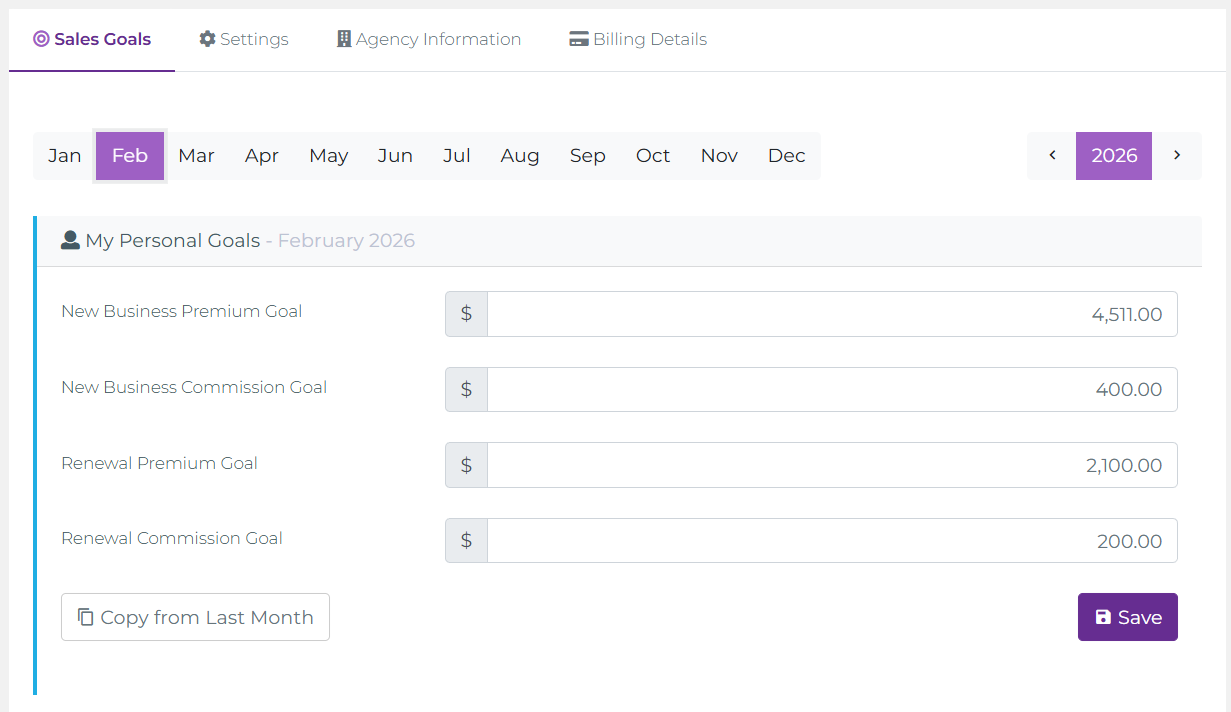
Use the month selector at the top to choose which month you're setting goals for:
- Click on any month name (Jan, Feb, Mar, etc.)
- Use the year selector (2026) and navigation arrows to change years
- Past months may appear locked if goals have already been finalized
- The currently selected month is highlighted in purple
Step 3: Enter Your Goals
Enter target amounts for each of the four goal categories:
- New Business Premium Goal: Target premium from new policies you aim to sell
- New Business Commission Goal: Target commission you aim to earn from new business
- Renewal Premium Goal: Target premium from policies you aim to renew
- Renewal Commission Goal: Target commission you aim to earn from renewals
Step 4: Save Your Goals
Click the purple Save button in the bottom-right corner. Your goals will now appear in your Dashboard Goals Summary widget.
For Agency Owner: Setting Agency Goals
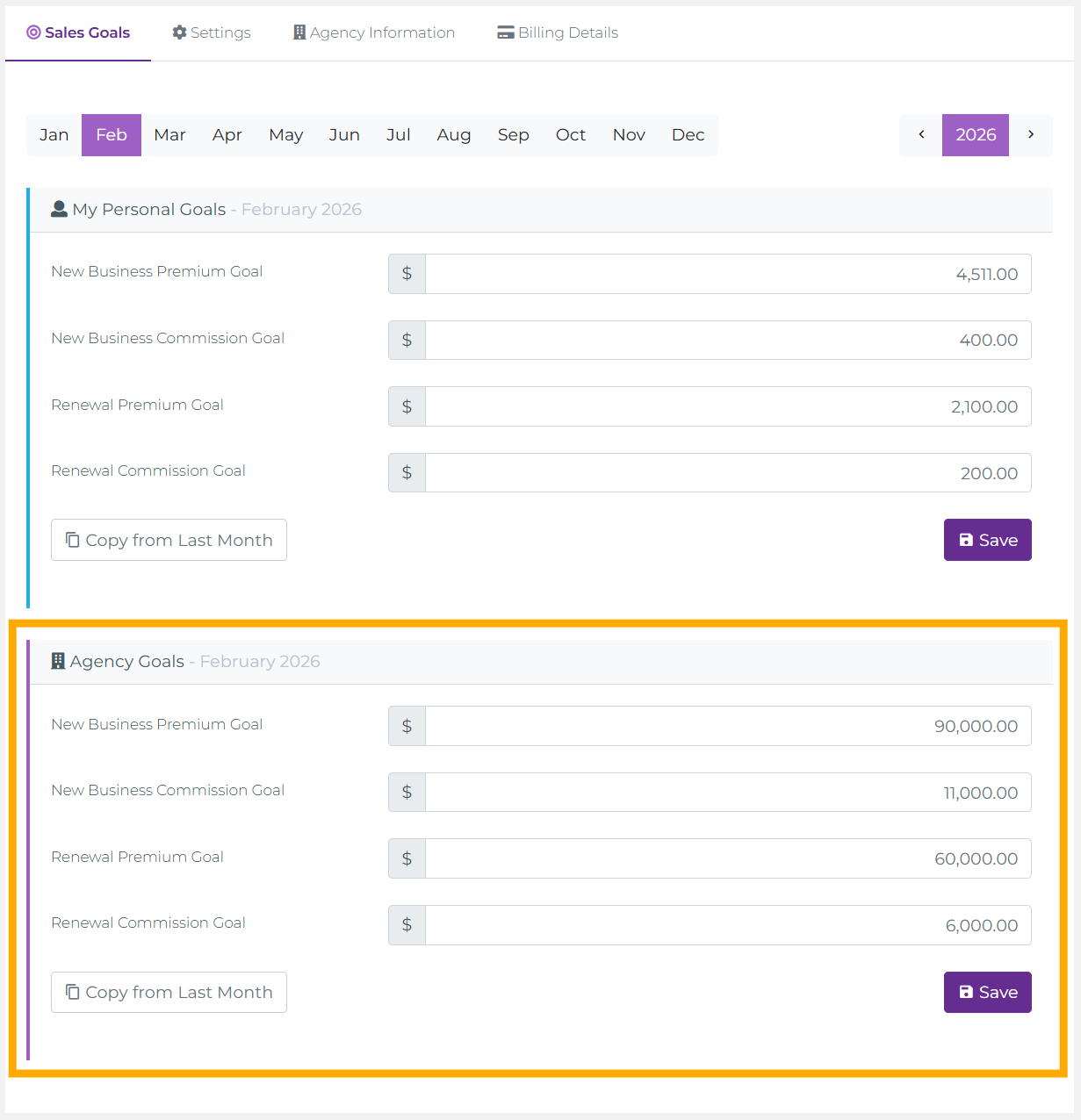
Agency-level goals represent your entire agency's monthly targets. Only the Agency Owner can set these goals. They are visible to the owner and administrators, but not to individual agents.
How to Set Agency Goals
- Navigate to My Profile → Sales Goals (same page as personal goals)
- Scroll down past "My Personal Goals" section
- You'll see the Agency Goals section below
- Use the month selector to choose which month
- Enter target amounts for the same four categories
- Click Save to apply agency-wide goals
For Managers/Admins: Setting Individual Agent Goals
Managers and administrators can set goals for individual agents. This is useful for enforcing consistent targets across your team or preventing agents from changing goals mid-month.
Method 1: Set Goals from the Users List
Step 1: Navigate to the Users List
- Go to ADMINISTRATION (left sidebar)
- Click General
- Select Users
Step 2: Open the Set Goals Modal
- Find the agent in the list
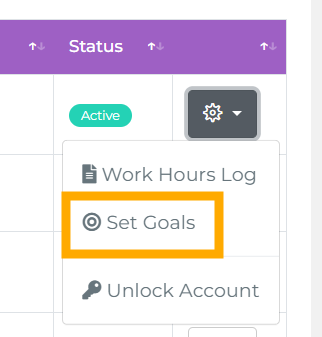
- Click the gear icon (⚙) next to their name
- Select Set Goals from the dropdown menu
- A modal window opens titled "Set Goals - [Agent Name]"
Step 3: Configure Goals
- Use the month/year selector to choose the target month
- Enter goal amounts for all four categories
- Optionally use Copy from Last Month to replicate previous targets
- Click Save to lock these goals for the agent
- Click Close to exit without saving
Method 2: Set Goals from Agent Details Page
Step 1: Navigate to Agent Details
- Go to ADMINISTRATION → General → Users
- Click on the agent's name to open their details page
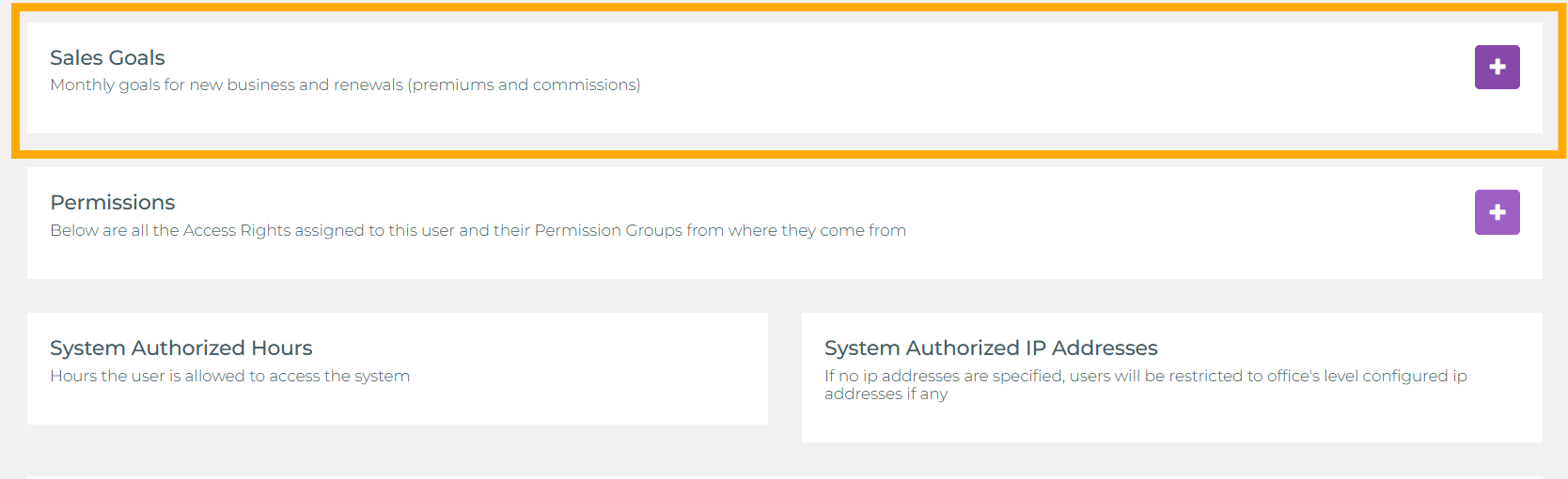
- Scroll down to find the Sales Goals section
Step 2: Expand and Set Goals
- Look for the collapsible section labeled Sales Goals with a purple + button
- Click the + button to expand the section
- You'll see the same goals interface shown earlier in this article: month/year selector, four goal fields, and Copy/Save buttons
- Enter goal amounts for each category
- Click Save to lock goals for this agent
Understanding the Interface
Month Selector
- Click any month name (Jan, Feb, Mar, etc.) to select that month
- Purple highlight indicates the currently selected month
- Past months may appear locked if finalized
Year Navigation
- Current year displays in a purple box (e.g., "2026")
- Use < and > arrows to navigate between years
- Useful for setting goals in advance or reviewing historical goals
Copy from Last Month Button
- Automatically fills all four goal fields with values from the previous month
- Saves time when your targets remain consistent
- You can still edit individual fields after copying
- If last month had no goals ($0), this button copies zeros
Save Button
- Located in the bottom-right corner (purple)
- Must be clicked to apply changes—navigating away without saving will lose your edits
- When managers save goals for agents, those goals become locked
Common Use Cases
1. New Agent Onboarding
Scenario: A new agent joins mid-year and needs goals set starting from their hire month.
How to do it:
- Manager navigates to ADMINISTRATION → General → Users
- Finds the new agent and clicks gear icon → Set Goals
- Selects the hire month (e.g., March 2026)
- Enters starter goals appropriate for a new agent
- Clicks Save, then repeats for subsequent months (April, May, etc.)
2. Mid-Month Goal Adjustment (Manager Override)
Scenario: An agent set unrealistic goals. Manager needs to adjust them mid-month.
How to do it:
- Manager goes to the agent's details page
- Expands the Sales Goals section
- Selects the current month
- Adjusts goal values to realistic targets
- Clicks Save (this locks the goals from further agent edits)
3. Seasonal Goal Planning
Scenario: Agency expects higher sales in Q4. Owner wants to set agency-wide goals in advance.
How to do it:
- Owner navigates to My Profile → Sales Goals
- Scrolls to Agency Goals section
- Uses month selector to choose October 2026
- Enters elevated targets for Q4 performance
- Clicks Save, then repeats for November and December
4. Consistent Targets Across Team
Scenario: Manager wants all agents to have the same baseline monthly goals.
How to do it:
- Manager goes to ADMINISTRATION → General → Users
- For each agent, clicks gear icon → Set Goals
- Enters the same target amounts for all agents
- Uses Copy from Last Month to speed up the process after setting the first agent's goals
- This ensures team-wide consistency and prevents individual agents from lowering their targets
Troubleshooting Common Issues
I Can't Edit My Goals (Fields Are Grayed Out)
Cause: Your manager has locked your goals for this month.
Solution: Contact your manager or administrator if you believe the goals need adjustment. Only they can modify locked goals.
Copy from Last Month Doesn't Work
Possible reasons:
- No goals set last month: If the previous month had no goals ($0), the button copies zeros. Enter goals manually.
- Locked fields: If your goals are locked, the button is disabled.
- First month: If you're setting January goals and December of last year had no data, the button has nothing to copy.
Goals Don't Appear in Dashboard Widget
Cause: You may not have saved your goals, or you're viewing the wrong month in the widget.
Solution:
- Verify you clicked Save after entering goals
- Check the period selector in the Goals Summary widget—ensure it's set to This Month
- Dashboard data refreshes overnight, so today's goal changes appear tomorrow
I Set Agency Goals But Agents Can See Them
Cause: This is not actually possible—agency goals are permission-restricted.
Clarification: Agency goals only appear in the Agency Goals Summary widget, which is visible only to users with agency-level permissions. If an agent is seeing goals, they're viewing their own personal goals, not agency goals. Verify which widget they're looking at.
Month Selector Shows Locked Months
Cause: Past months are typically locked to prevent retroactive goal changes.
Solution: Focus on setting goals for the current month and future months. If you need to adjust historical goals for reporting purposes, contact your system administrator.
Best Practices
For Agents:
- Set Realistic Goals: Base targets on your historical performance + 10-20% stretch
- Review Last Month's Results: Before copying goals, check if last month's targets were appropriate
- Set Goals Early: Enter next month's goals by the 25th of the current month so you start tracking immediately
- Balance Your Portfolio: Don't set $0 for renewals just because you're focused on new business—balanced goals drive balanced effort
- Communicate with Your Manager: If your manager locks goals you disagree with, discuss target-setting expectations
For Managers/Admins:
- Set Goals Collaboratively: Discuss targets with agents before locking them—buy-in improves performance
- Use Data to Inform Targets: Review agent historical performance before setting goals (don't guess)
- Lock Strategically: Don't lock goals unless necessary—self-set goals often drive better ownership
- Set Goals in Advance: Use the year navigator to set Q1, Q2, Q3, Q4 goals early in the year
- Document Your Process: Establish clear guidelines for when/why goals are locked (e.g., "goals locked after the 5th of the month")
- Agency Goals Should Be Ambitious: Agency-wide targets should challenge the team collectively, not just sum individual goals
Related Resources
Once you've set your goals, track your progress with these Dashboard widgets:
- Goals Summary Widgets: Real-time progress tracking with visual gauges and status indicators (Ahead/On Track/Behind/At Risk)
- Performance Metrics Cards: See detailed breakdowns of premium, commissions, and policy counts
- Sales Volume Charts: Visualize your new business vs renewal trends over time