
Why Use an Endorsement for This?
When a policy is first created, commissions are added directly to the initial transaction (New Business, Renewal, etc.) and posted at that time. But some commission scenarios don't happen at policy creation — for example, a carrier might pay your agency an additional commission after the insured makes their third monthly payment, or a performance bonus might arrive mid-term.
Since the policy already exists and has no open transaction to attach a commission to, the way to handle this is by adding a $0 Endorsement to the policy. The endorsement acts as a container for the new commission record — it doesn't change the policy terms or the premium, it simply provides a transaction that the commission can be attached to.
Step 1: Open the Policy and Add an Endorsement
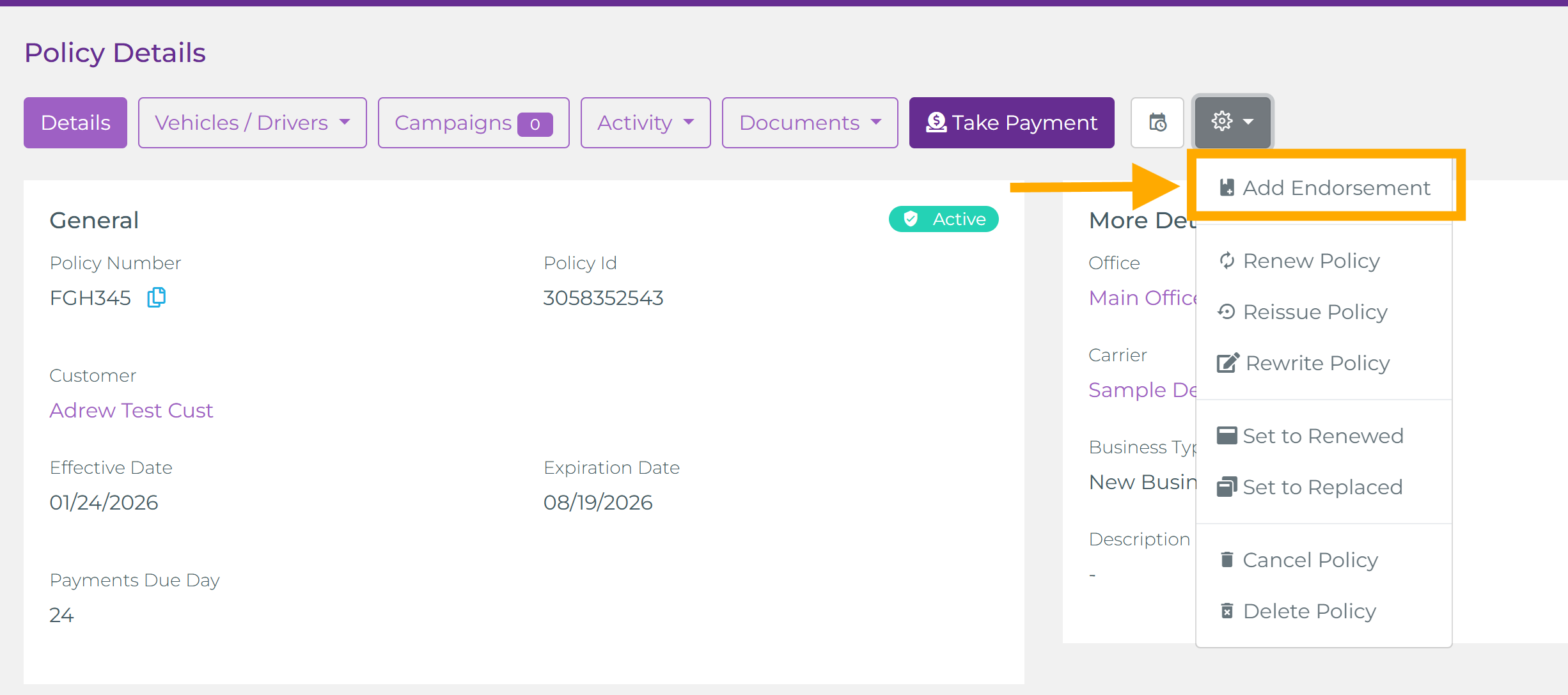
Navigate to the policy page for which you need to record the additional commission. In the top action menu of the policy page, click the gear (⚙) icon and select Add Endorsement. This will take you to the policy edition screen with a new Endorsement transaction already added to the transactions list.
Step 2: Configure the Endorsement Transaction
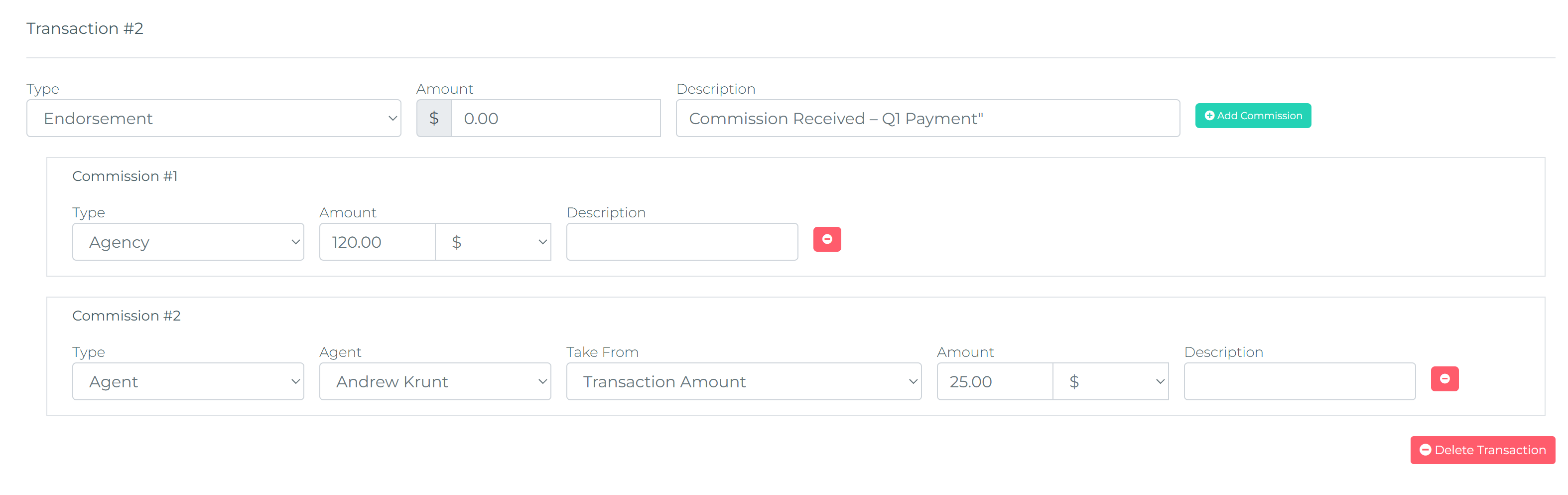
In the transactions section, locate the new Endorsement transaction. Set the following:
- Premium amount: $0 — this endorsement does not change the policy premium.
- Description: enter something meaningful, such as "Commission Received", "Installment Commission – Payment 3", or whatever describes the reason for this commission. This description will appear in reports and the policy history.
Step 3: Add the Commission Record(s) Under the Endorsement
Under the Endorsement transaction, click Add Commission to add one or more commission records. For each commission:
- Select the commission type: Agency or Agent
- Enter the dollar amount or percentage of the commission
- If splitting between multiple agents or the agency, add additional commission records as needed
The $0 endorsement can hold as many commission records as needed — one for the agency, one or more for individual agents, etc.
Step 4: Save the Policy Changes
Once the endorsement and its commission record(s) are set up, save the policy. After saving, return to the policy page. You will notice the Post Commissions green button is now visible in the top action menu — the system has detected that there are pending commissions attached to the new endorsement transaction.
Step 5: Post the Commissions When Ready
When you're ready to post, click the Post Commissions button on the policy page. A summary pop-up will appear listing all pending commission records — including the ones from the new endorsement. Review the amounts and confirm to post.
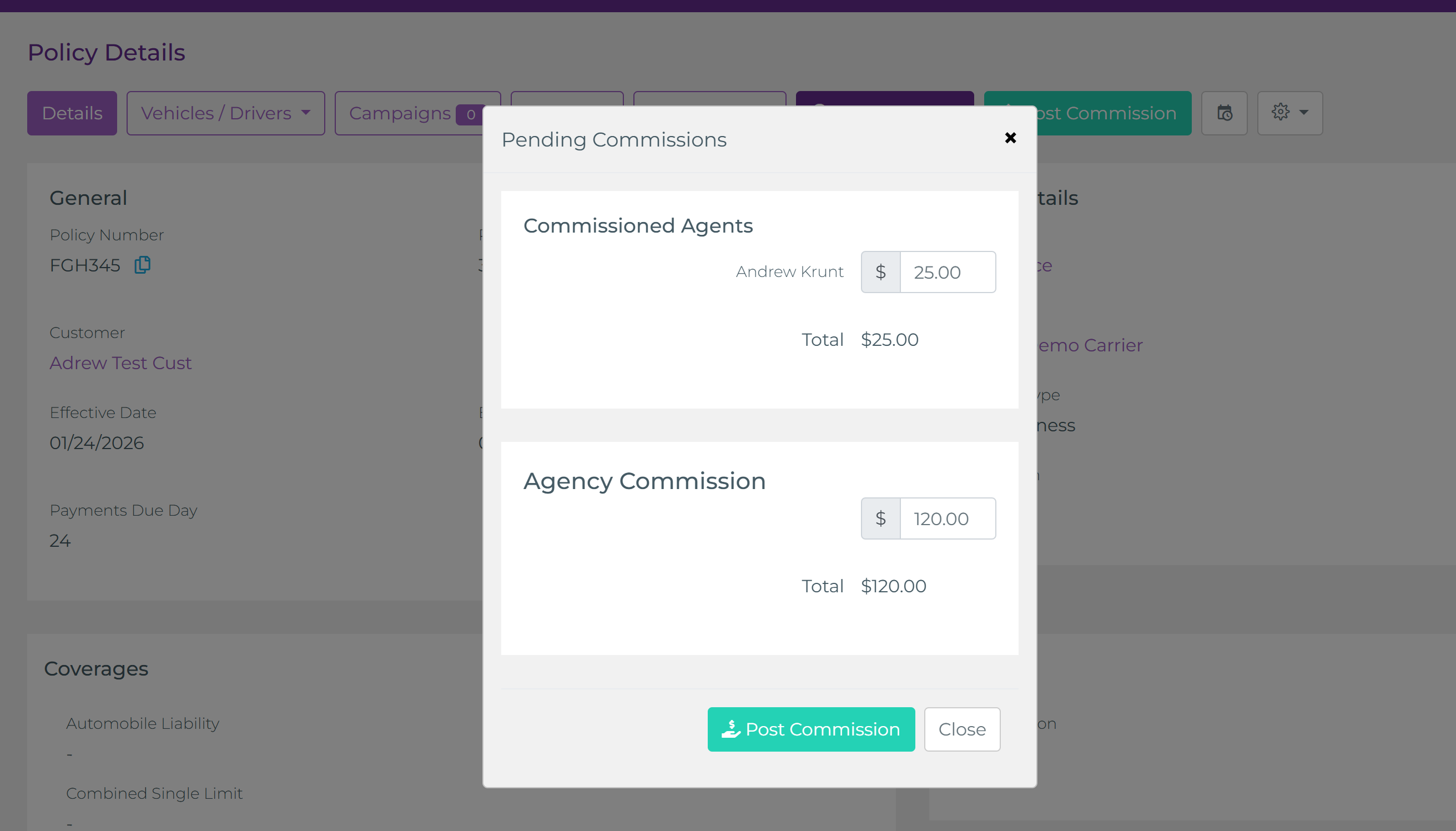
Once posted, the commissions are finalized and will appear in commission reports as Posted. If you haven't posted yet, they will appear as Pending in reports.
How This Appears in Reports
The commission records added via this endorsement follow the same reporting rules as any other commission:
- Before posting: they appear as Pending in both agency and agent commission reports
- After posting: they appear as Posted and are included in total earnings
- The associated transaction description you set on the endorsement (e.g., "Commission Received") will be visible in the report details, making it easy to identify the source
For more on commission reporting, see Tracking Agency and Agent Commissions.