
Taino's Google Calendar integration keeps your work and personal calendars perfectly in sync. When enabled, all events, reminders, and tasks you create in Taino automatically appear in your Google Calendar — making it easy to manage your schedule in one place.
How to Access Calendar Sync Settings
Navigation Path:
- Click on your profile name/avatar in the top-right corner of any page
- Select My Profile from the dropdown menu
- Click on the Settings tab
- Expand the Configurations collapsible section
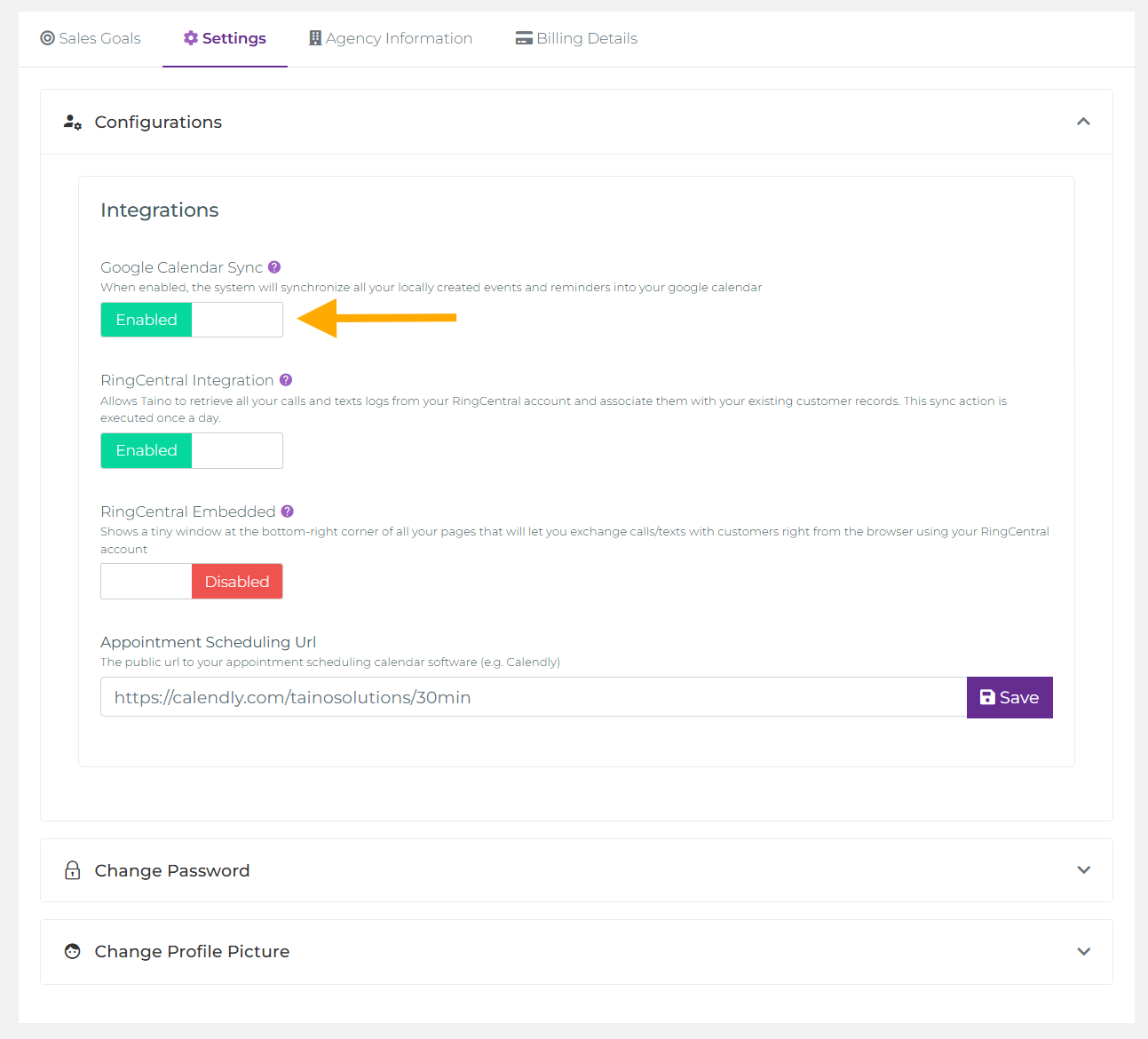
- Find Google Calendar Sync under Integrations
What Gets Synced to Your Google Calendar
Once enabled, the following Taino items automatically sync to your Google Calendar:
- Events: All calendar events you create in Taino
- Reminders: Personal and customer-related reminders
- Tasks: Tasks assigned to you with due dates
- Customer Associations: Events linked to specific customers appear with customer context
- Policy-Related Events: Policy renewal dates, follow-ups, and important deadlines
Important: All your locally created events and reminders in Taino will synchronize to your Google Calendar. This gives you a complete view of your work schedule alongside your personal calendar.
Enabling Google Calendar Sync - Step by Step
Step 1: Open Profile Settings
- Click your profile name (top-right corner)
- Select My Profile
- Click the Settings tab
- Expand Configurations
Step 2: Enable Google Calendar Sync
- Under Integrations, find Google Calendar Sync
- It displays: "When enabled, the system will synchronize all your locally created events and reminders into your google calendar"
- Click the green Enabled button
Step 3: Authorize with Google
- You'll be automatically redirected to Google's authentication page
- A new window/tab opens with Google's sign-in page
- Sign in with your Google account (if not already signed in)
- Review permissions: Google will ask to allow Taino to access your calendar
- Click Allow or Grant Access to authorize the connection
Step 4: Confirmation
- You'll be redirected back to Taino automatically
- A success message appears confirming the integration is active
- The Google Calendar Sync toggle will show as Enabled (green)
That's it! From this moment forward, all your Taino events, reminders, and tasks will automatically sync to your Google Calendar.
Managing Your Integration
To Disable the Sync:
- Return to My Profile → Settings → Configurations
- Under Integrations, click the green Enabled button next to Google Calendar Sync
- The status will change to Disabled (red)
To Re-enable:
- Simply click the toggle again
- You may need to re-authenticate with Google if your authorization expired
Benefits of Calendar Sync
- One Calendar View: See all work and personal events in one place (your Google Calendar app)
- Mobile Access: All Taino events appear on your phone via Google Calendar mobile app
- Automatic Updates: Changes in Taino sync automatically — no manual entry needed
- Never Miss a Deadline: Google Calendar notifications remind you of Taino tasks and events
- Cross-Platform: Access your schedule on any device with Google Calendar
- Customer Context: See which events are related to specific customers and policies
Troubleshooting
Events Not Syncing?
- Go to Settings → Configurations → Integrations
- Verify Google Calendar Sync shows as Enabled (green button)
- Confirm you granted calendar access permissions during the OAuth authorization
- Try disabling and re-enabling the sync
- Check your Google Calendar — Taino events may appear in a separate calendar
Need to Re-authorize?
- If your Google authorization expires, simply toggle the sync off and back on
- You'll go through the OAuth flow again
Other Integrations Available
In the same Integrations area, you'll also find:
- RingCentral Integration: Sync calls and texts with customer records
- RingCentral Embedded: Make calls directly from your browser
- Appointment Scheduling URL: Set your Calendly or other scheduling link
Watch the video below for a step-by-step tutorial: