
Commission Pipeline & Tracking charts monitor how accurately your commission estimates convert—comparing the expected commission you forecasted for opportunities against the actual commission earned from sold policies. These widgets answer the question: "Are my commission estimates accurate? Am I earning what I expected?" Available in My Expected vs Earned Commission (Agent view) and Agency Expected vs Actual Commissions (Agency-wide view).
What This Widget Shows
This is a Commission Conversion Trackerit measures income forecasting accuracy by comparing:
- What you predicted (Expected Commission from prospects)
- What you actually earned (Earned Commission + opportunities Lost)
Understanding the 3 Metrics
1. Expected Commission (Blue Line)
The total expected commission value from all New Business opportunities that had significant activity that day:
- Prospects you created that day (newly added to your pipeline)
- Prospects that closed (Won) that day
- Prospects that were marked Lost that day
What it means: "On Monday, the total expected commission from all new business deals I worked on (including both wins and losses) was $3,150."
Data source: Sum of Expected Value field from SalesBoard prospects (set as commission amounts) that were created, closed (Won), or marked Lost on that date.
2. Earned Commission (Teal Area)
The actual commission dollars from new policies you successfully sold and earned commission on that day.
What it means: "On Monday, I earned $1,150 in commission from closed new business deals."
Data source: Sum of agent commission from new policies (New Business transaction type) created that day.
3. Loss (Red Area - Toggle Controlled)
The expected commission value from prospects that were marked as Lost that day.
What it means: "On Monday, I lost deals worth $200 in expected commission."
Display: Shown as negative values below the zero line. Hidden by defaultenable with "Show loss" toggle.
How to Read the Chart
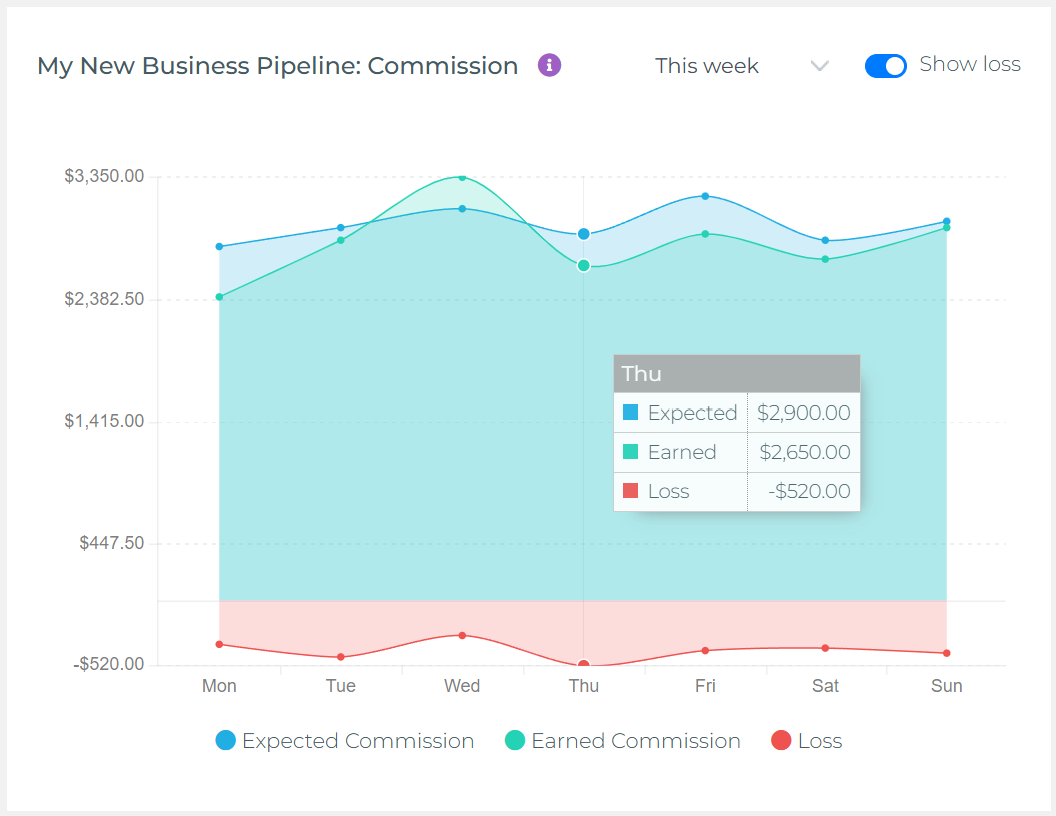
Example Week (Daily View):
Monday:
- Closed 1 deal: Expected $2,800 → Earned $2,400 (lower commission tier)
- Lost 1 opportunity: Expected $350
Chart shows: Expected $3,150 (blue), Earned $2,400 (teal), Loss -$350 (red, if toggled)
Wednesday - Overperformance:
- Closed 2 deals: Expected $2,900 → Earned $3,350 (customers bought MORE coverage!)
Chart shows: Expected $2,900 (blue), Earned $3,350 (teal)—teal area crosses ABOVE blue line—earned MORE commission than expected!
Thursday:
- Closed 2 deals: Expected $3,200 → Earned $2,650 (lower commission than estimated)
- Lost 1 deal: Expected $520
Chart shows: Expected $3,720 (blue), Earned $2,650 (teal), Loss -$520 (red, if toggled)
Using the Widget Controls
Period Selector (Dropdown)
Choose your time range (defaults to "This Week"):
- This Week: Daily data points (Mon-Sun)
- This Month: Weekly data points (W1, W2, W3, W4)
- This Quarter: Monthly data points
- This Year: Quarterly data points
- Year to Date: Monthly data from January to current month
- Last Year: Quarterly data from previous year
Show Loss Toggle
The switch in the upper-right controls whether the Loss metric (red area) is visible:
- OFF (default): Shows Expected (blue) and Earned (teal) onlyfocus on successful conversions
- ON: Adds Loss (red) below zero linesee complete picture of where expected commission went
When to enable: When analyzing income forecasting accuracy, lost commission impact, or investigating why earned < expected
Common Use Cases
1. Measure Income Forecasting Accuracy
Question: "How good am I at estimating my commission earnings?"
How to use:
- Compare Earned Commission (teal) to Expected Commission (blue)
- Lines close together: Accurate forecastingyou estimate commission well
- Earned consistently below Expected: You're over-estimatingadjust expectations lower
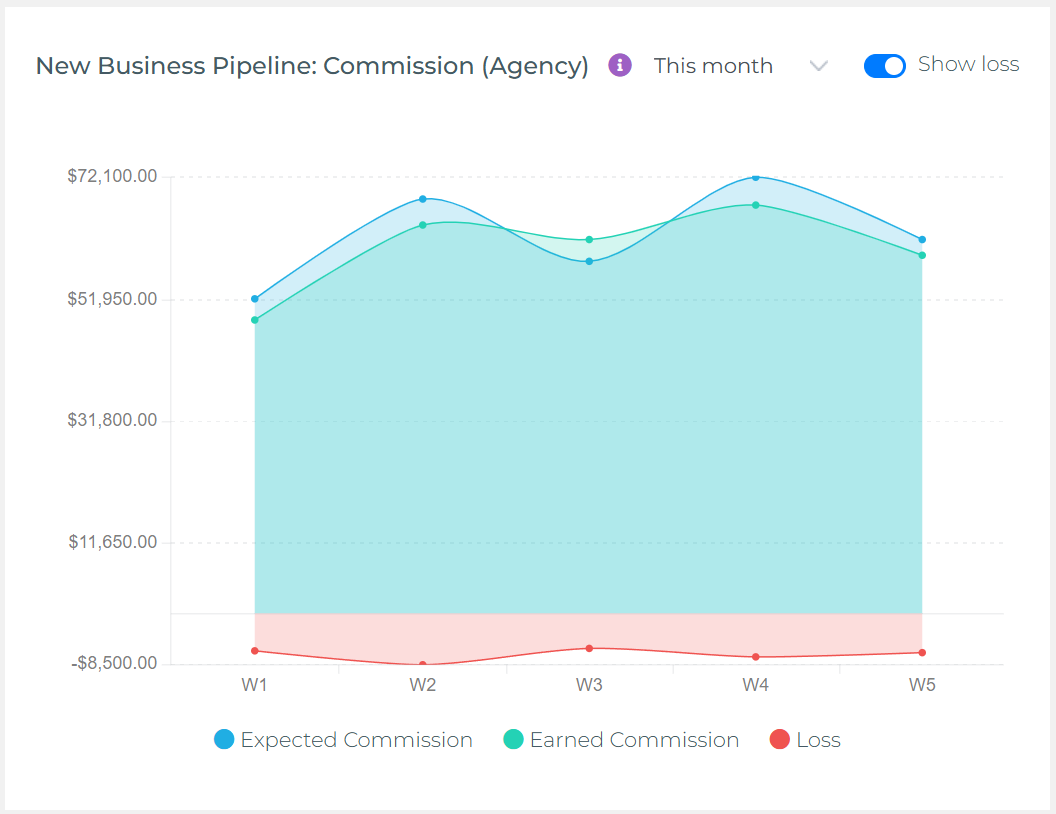
- Earned above Expected (W3 in example): Customers buying MORE than predictedhigher commission opportunities!
2. Calculate Commission Conversion Rate
Question: "What percentage of expected commission actually converts to earnings?"
How to use:
- Enable "Show loss" toggle
- Formula: Conversion Rate = Earned Expected
- Example: Expected $2,200, Earned $2,450 = 111% (overperformance!)
- Benchmarks:
- Above 100%: Customers buying more than estimated (excellent upselling = higher commission)
- 85-100%: Strong conversionminor adjustments
- 70-85%: Typicalsome prospects reduce coverage or commission structure varies
- Below 70%: Investigatepricing issues, commission tier problems, or poor qualification
3. Track Lost Commission Impact
Question: "How much potential income am I losing from failed deals?"
How to use:
- Enable "Show loss" toggle
- Look for red spikesdays with high lost commission
- Review SalesBoard Lost prospects from those dates to understand why
- Calculate cumulative lost commission for the period to see income impact
- Adjust strategy to reduce loss rate and protect income
4. Monitor Income Trends Over Time
Question: "Is my commission income growing or declining?"
How to use:
- Select "This Quarter" or "This Year" for long-term view
- Earned growing faster than Expected: Income improving through upselling
- Expected growing, Earned flat: More activity but not closing (conversion problem)
- Both declining: Need more prospecting to maintain income
Interpreting Chart Patterns
Healthy Performance Indicators
- Teal area near or above blue line: Deals closing at expected commission (good forecasting)
- Teal crosses above blue (W3 example): Earning MORE than expected (excellent upselling)
- Small red areas (when toggled): Low loss rateprotecting your income
- Consistent conversion ratio: Predictable income stream
Warning Signs
- Large gap (Earned far below Expected): Over-estimating commission or poor conversion
- Large red areas: High loss ratelosing significant potential income
- Earned + Loss < Expected: Some deals still pendingfollow up to protect commission!
- Both lines declining: Income at riskneed more prospecting activity
Agent vs Agency Views
My Expected vs Earned Commission (Agent View)
- Shows: Only YOUR personal commission earningsprospects you created and commission you earned
- Who uses it: Individual agents tracking their own income accuracy
- Use case: "Am I estimating my commission income accurately? Are my deals closing at expected commission?"
Agency Expected vs Actual Commissions (Agency View)
- Shows: Aggregate commission earnings across ALL agents in the agency
- Who uses it: Agency owners, managers, users with agency-level permissions
- Use case: "Is the team's commission income on track? Are we forecasting agency revenue accurately?"
Best Practices
- Set realistic Expected Commission: Enter conservative commission estimates in SalesBoardover-promising creates false income forecasts
- Understand commission tiers: If commission varies by premium amount, adjust Expected Value accordingly
- Update Lost prospects immediately: Mark losses promptly so you understand true income impact
- Review weekly: Check "This Week" view every Friday to track income trends
- Compare with premium charts: Use alongside "Sales Volume Planning Outcomes" to see how premium relates to commission
- Learn from overperformance: When Earned > Expected (W3), analyze what drove higher commissionreplicate that approach
- Track seasonal income patterns: Use "Last Year" view to identify peak earning periods and plan accordingly
Troubleshooting
Chart shows no data
- Cause: No sales activity during selected period
- Solution: Change period to longer timeframe (e.g., "This Quarter")
- Verify: Check SalesBoard for prospects created/closed in selected dates
Expected commission values seem wrong
- Cause: Expected Value in SalesBoard set as premium instead of commission
- Solution: Update Expected Value field to reflect YOUR commission amount (not total premium)
- Note: Commission typically 10-20% of premium, varies by product and agency contract
Earned doesn't match commission statements
- Cause: Policy commission amounts not recorded correctly
- Solution: Verify policies have agent commission field populated
- Check: Ensure commission calculation rules are configured correctly in system
Loss toggle shows nothing
- Cause: No prospects marked Lost during selected period
- Solution: This is normal if you haven't lost any dealsgreat news!
- Verify: Check SalesBoard for prospects with Lost status in selected dates
Key Takeaways
- This widget measures commission forecasting accuracy, not income goals
- Expected Commission = commission from opportunities you worked on each day
- Earned Commission = commission you actually earned from closed deals
- When Earned > Expected (like W3): higher commission from upsellinganalyze why and replicate
- Use "Show loss" toggle to see potential income impact from lost deals
- Review weekly to catch income trends early and adjust prospecting strategy