
What Are Automated Campaigns?
While Automated Pipelines serve as the templates or blueprints for your automation workflows, Automated Campaigns are the actual running instances of those pipelines. Think of pipelines as recipes and campaigns as the meals you're cooking—each campaign represents a specific execution of a pipeline for a particular customer or policy.
Campaigns track the real-time progress of automated workflows, showing you exactly what actions have been completed, what's currently running, and what's coming next. They also provide valuable engagement metrics, such as whether customers clicked on links in emails or SMS messages, helping you measure the effectiveness of your automated communications.
Where to Find Campaigns
You can view and manage campaigns from multiple locations in the platform, depending on whether you need a customer-specific view, policy-specific view, or a global overview of all campaigns running across your agency.
Customer-Level Campaigns
To view all campaigns associated with a specific customer:
- Search for a customer using the search box in the top header, or navigate to Customers from the left navigation menu
- Click on a customer's name to open their details page
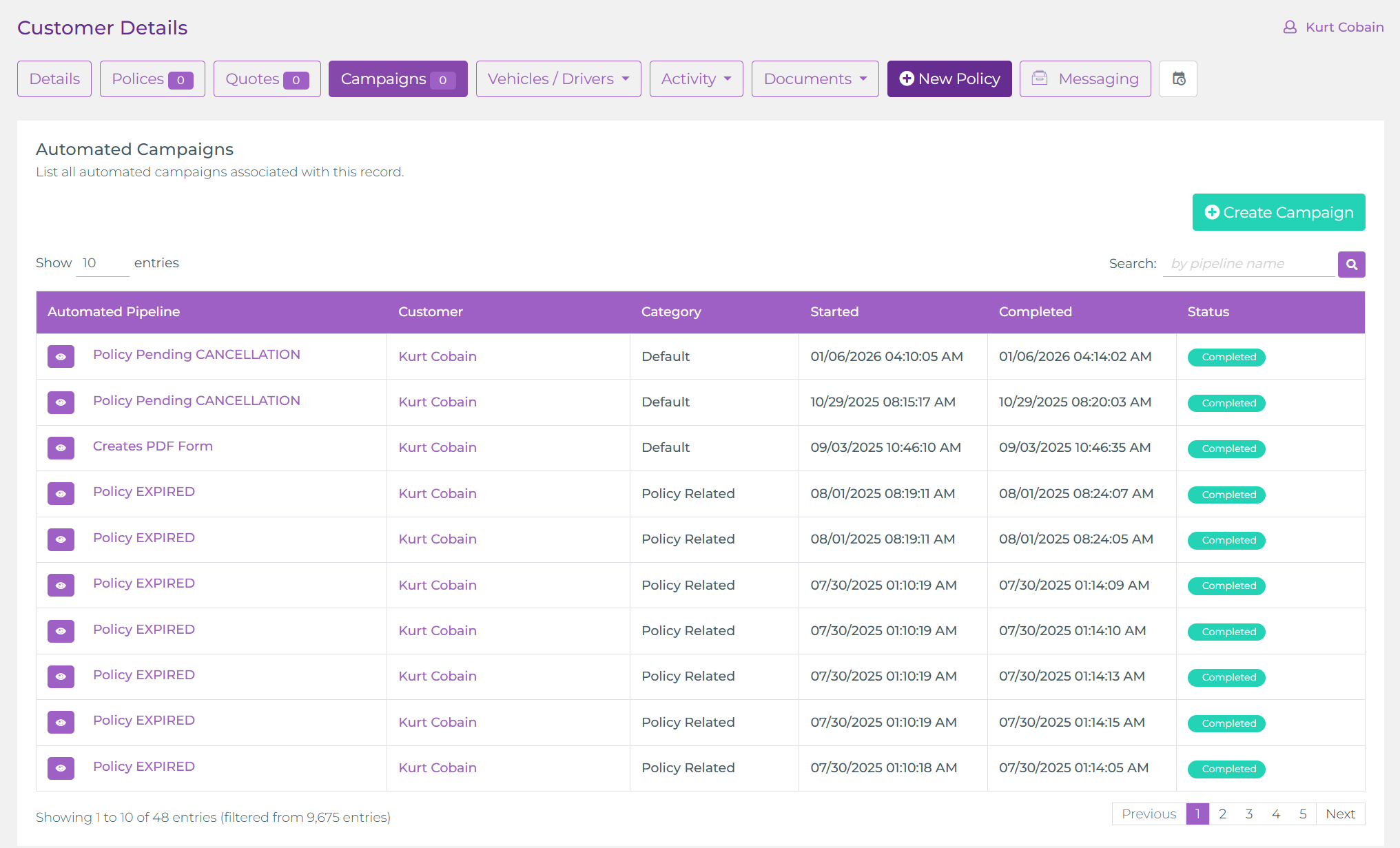
- Select the Campaigns tab to see all automated campaigns that have been initiated for this customer
This view shows campaigns that were either manually triggered by an agent or automatically started based on customer-related events (such as new customer creation, birthday reminders, or customer data updates).
Policy-Level Campaigns
To view campaigns specific to a policy:
- Navigate to Policies from the left navigation menu and search for a policy, or open a Customer Details page and click the Policies button at the top to view that customer's policies
- Click on a policy number to open the policy details page
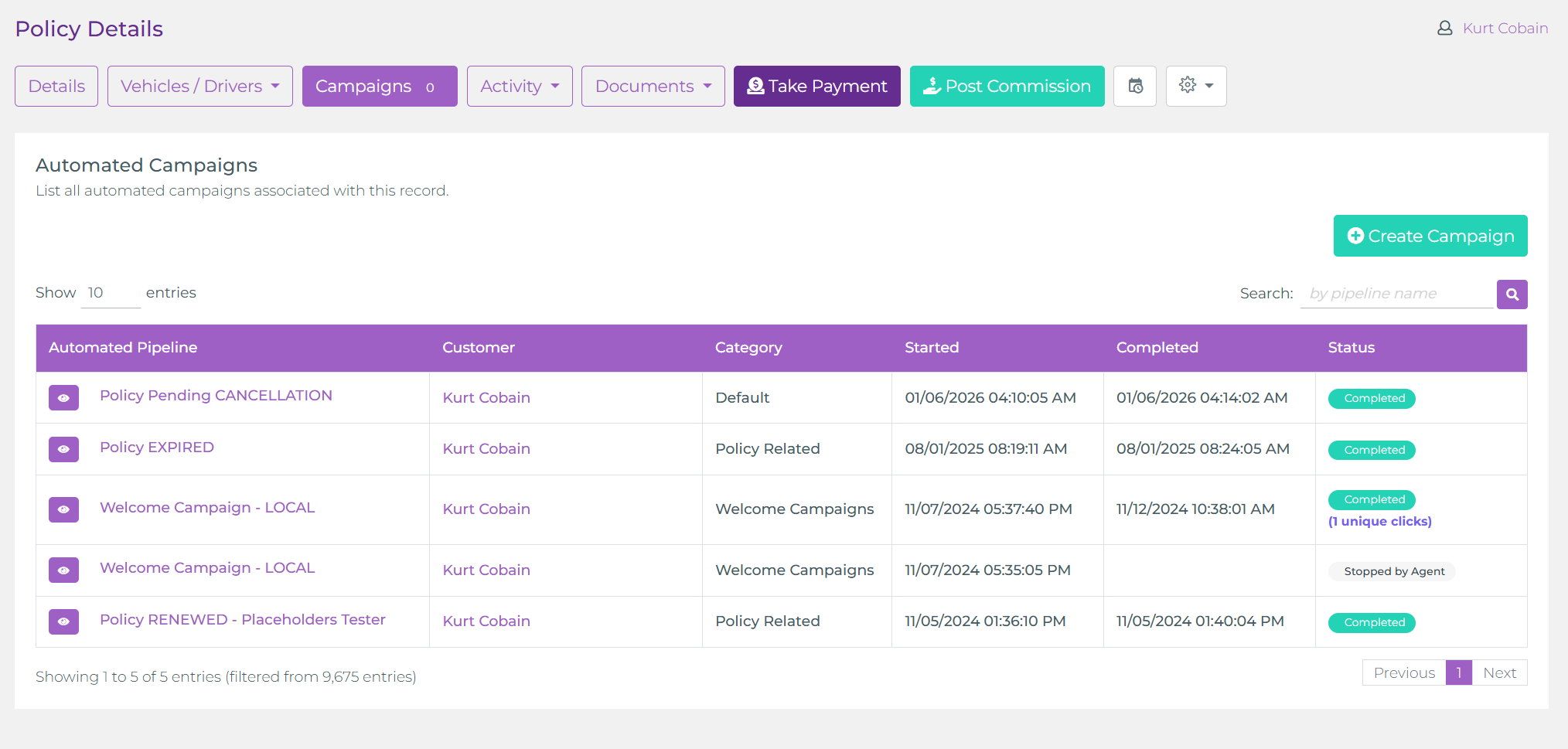
- Select the Campaigns tab to see all automated campaigns related to this policy
Policy-level campaigns often include workflows for policy renewals, expiration reminders, endorsement requests, cancellation processes, and payment follow-ups. The campaign list also displays engagement metrics such as customer clicks on emails or SMS messages, giving you insight into customer interaction.
Global Execution Logs
For a comprehensive view of all campaigns running across your entire agency:
- Navigate to Automation in the left navigation menu
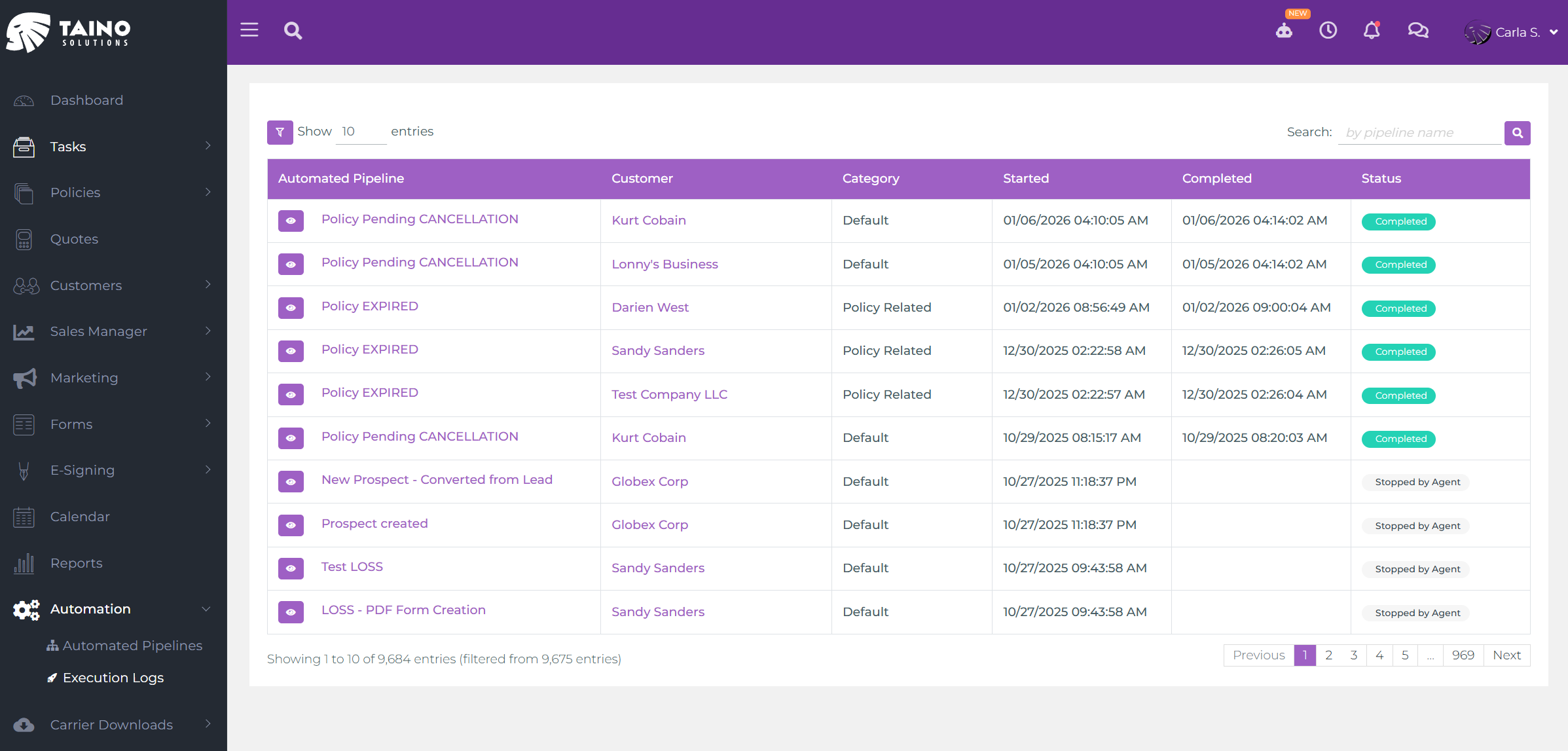
- Click on Execution Logs to see a complete list of all campaign executions
The Execution Logs page provides a centralized dashboard where you can monitor all automated campaigns across customers and policies. You can filter by status (Running, Completed, Stopped), search by customer or policy name, and review campaign performance metrics. This is particularly useful for administrators who need to oversee automation activity agency-wide.
Creating Campaigns Manually
While many campaigns start automatically based on system triggers (such as policy changes, web form submissions, or scheduled dates), you can also manually initiate campaigns when needed. This is especially useful for workflows like endorsement requests, policy cancellations, or custom communications that require an agent's decision to start.
The "Initiated By Agent" Concept
Not all pipelines can be started manually—only those specifically designed with an "Initiated By Agent" trigger block. This design choice ensures that pipelines built for automatic triggers (like web form submissions or policy expiration dates) don't accidentally get started manually, which could cause confusion or duplicate workflows.
When you create a campaign manually, the system shows you only the pipelines that have the "Initiated By Agent" trigger, making it clear which workflows are intended for manual execution versus automatic triggering.
How to Manually Start a Campaign
To manually initiate a campaign from a Customer or Policy page:
- Open the Customer Details page or Policy Details page
- Click on the Campaigns button located at the top of the page
- Within the Campaigns tab, click the green Create Campaign button
- The modal displays a list of available pipelines (both system templates and custom agency pipelines) that have the "Initiated By Agent" trigger—these are the workflows you can manually start
- Select the pipeline you want to execute (for example, "Endorsement Request" or "Policy Cancellation Request")
- Click Create to start the campaign immediately for that customer or policy
Once created, the campaign begins executing according to the pipeline's design, sending emails, generating documents, creating tasks, or performing any other automated actions defined in the workflow.
Tracking Campaign Progress and Engagement
One of the most powerful features of automated campaigns is the ability to track their progress in real-time and measure customer engagement with your communications.
Campaign Status
Each campaign displays a status indicator that shows its current state:
- Running: The campaign is actively executing and may be waiting on scheduled delays, customer actions, or other conditions
- Completed: All steps in the campaign have been executed successfully, and the workflow has finished
- Stopped: The campaign was manually stopped by an agent or automatically halted due to an error or condition not being met
Click Tracking on Emails and SMS
When campaigns send emails or SMS messages with links, the platform automatically tracks whether customers click on those links. This engagement data appears directly in the campaign list, showing you which communications resonated with customers and which may need improvement.
For example, if a campaign sends a policy renewal reminder email with a "Pay Now" link, you can see whether the customer clicked that link. This helps you understand customer behavior and follow up appropriately—if they clicked but didn't complete payment, an agent might reach out to offer assistance.
Completion Times
The campaign list also displays when each campaign started and when it completed (or if it's still running). This information helps you understand how long workflows take to execute, identify any campaigns that may be stuck, and ensure timely follow-up on time-sensitive workflows like policy cancellations or endorsement requests.
Viewing Campaign Details and History
To see exactly what happened during a campaign's execution, you can open the campaign details view, which provides a visual diagram of the workflow and a detailed history log.
Execution Diagram
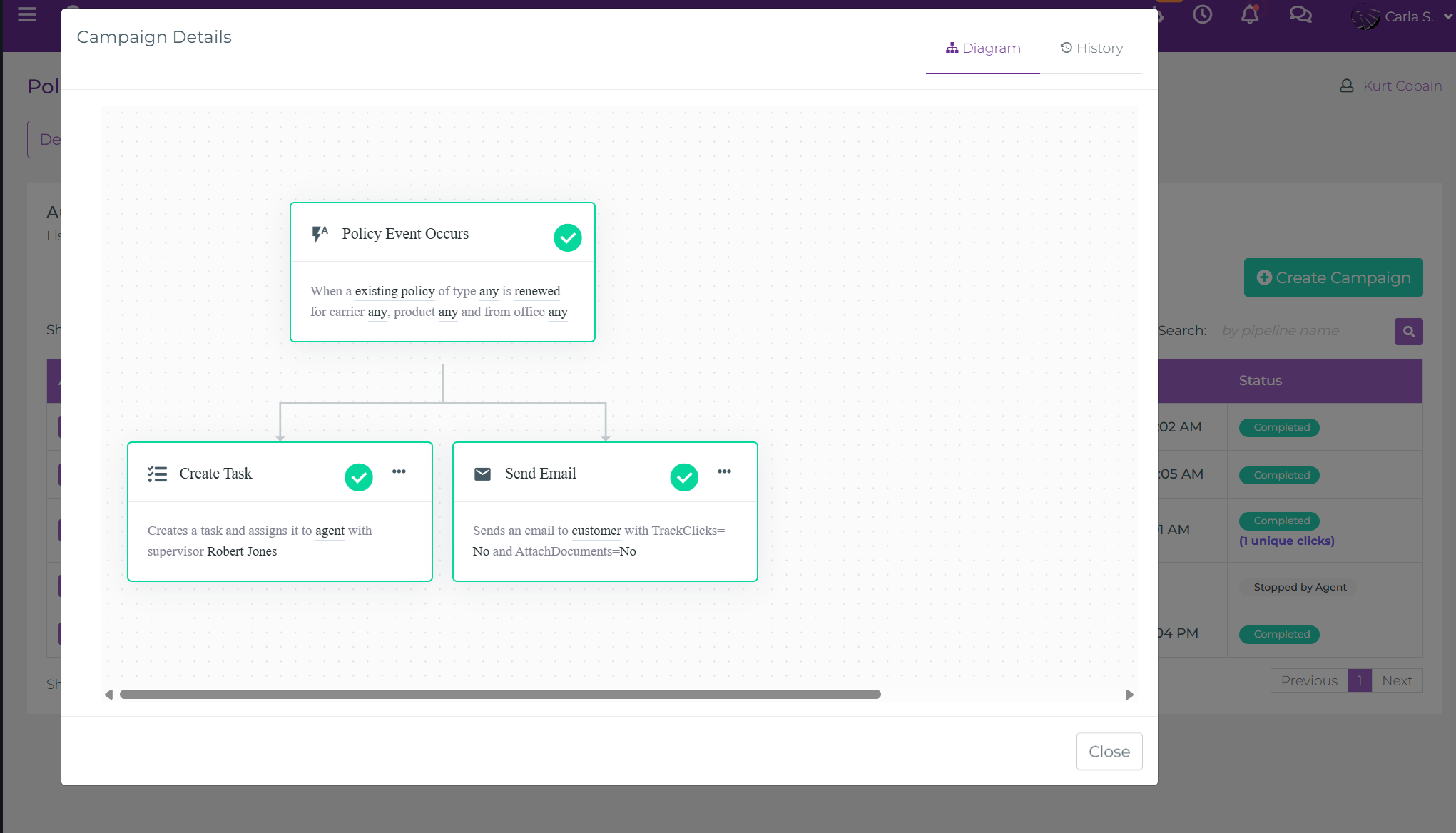
When you click on a campaign from the Campaigns tab or Execution Logs, a modal opens displaying the execution diagram. This diagram shows:
- All steps in the pipeline (trigger blocks, actions, conditions, delays)
- Which steps have been completed (marked with checkmarks or progress indicators)
- Which step is currently executing (highlighted or marked as in-progress)
- Which steps are pending or haven't been reached yet
The visual diagram makes it easy to understand where the campaign is in its workflow and troubleshoot any issues if a campaign stops unexpectedly.
History Tab
The History tab within the campaign details modal provides a chronological log of every action the campaign has taken. This includes:
- When each step started and completed
- Details about emails sent (to whom, subject line, delivery status)
- Documents generated (PDF names, links to view them)
- Tasks or reminders created (assigned to which agent, due dates)
- Record updates (fields changed, old values, new values)
- Any errors or warnings encountered during execution
The history log is invaluable for troubleshooting, auditing, and understanding exactly what automated actions occurred for each customer or policy.
Conclusion
Automated Campaigns give you complete visibility and control over your workflow executions. By understanding where to find campaigns, how to manually initiate them when needed, and how to track their progress and customer engagement, you can maximize the effectiveness of your automation strategy.
To learn more about creating and designing the pipelines that power your campaigns, see our Automated Pipelines guide. For specific use cases like sales automation, check out our Sales Automation article. And if you're looking for ready-made solutions, explore our System Pipeline Templates that you can enable and customize for your agency.